ClipDock
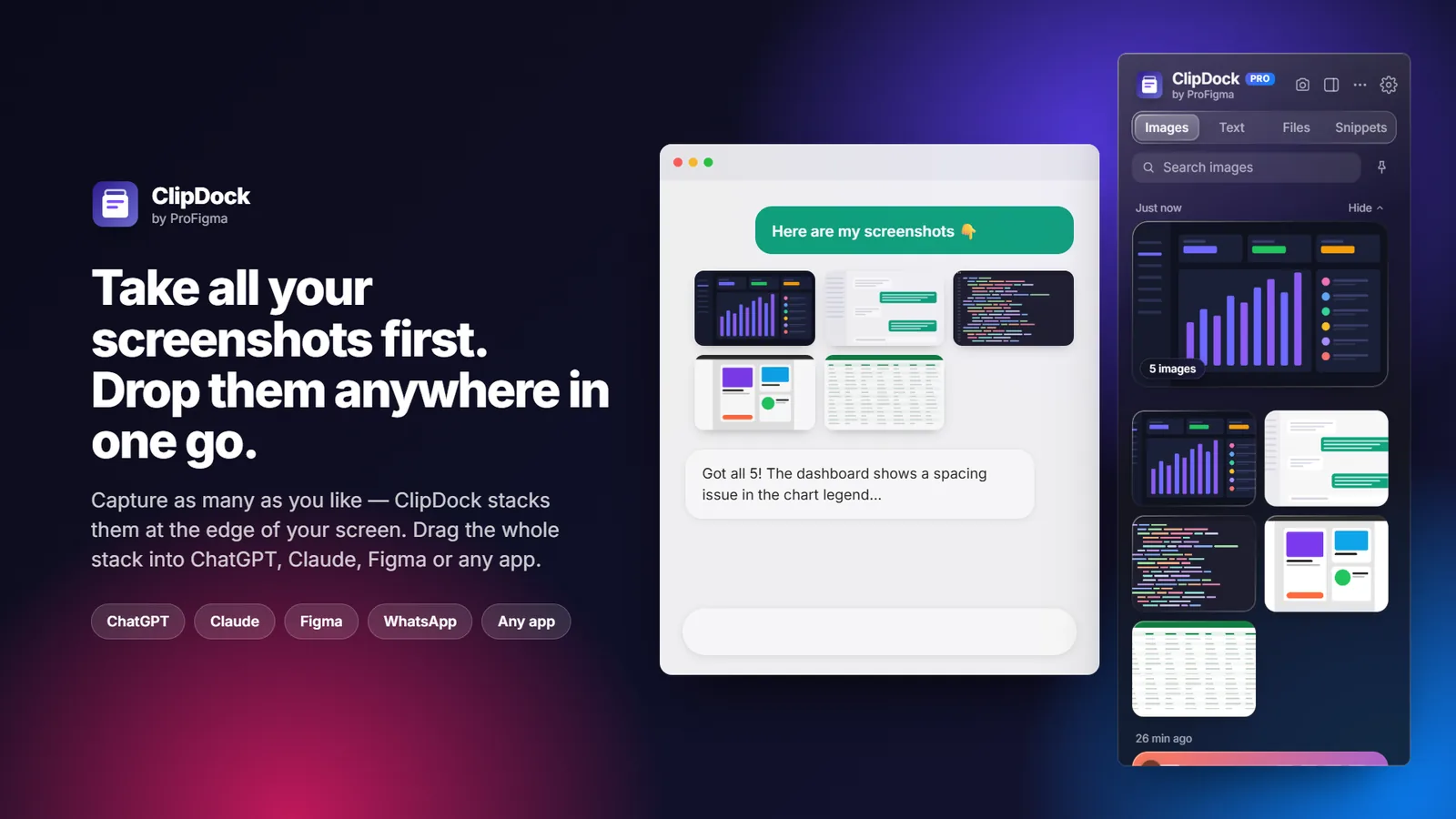
A Windows app that sits on the edge of your screen and keeps everything you copy. Take all your screenshots first, then drag the whole stack into ChatGPT, Claude, Figma or any app in one move.
The problem
Working with ChatGPT or Figma means this, again and again: take a screenshot, switch apps, paste, go back, take another one.
I did it many times a day myself. Windows keeps only one thing on the clipboard at a time, so every screenshot means another trip.
One thing at a time
The clipboard forgets the last screenshot the moment you take the next.
Constant switching
Every image is a switch, a paste and a switch back.
Editing needs another app
An arrow or a blur means opening an image editor.
What I built
A clipboard dock with a built-in screenshot tool and editor, made for people who paste a lot into AI and design tools.
Screenshot tool
Area, window, full screen or all monitors with Alt+Shift+S.
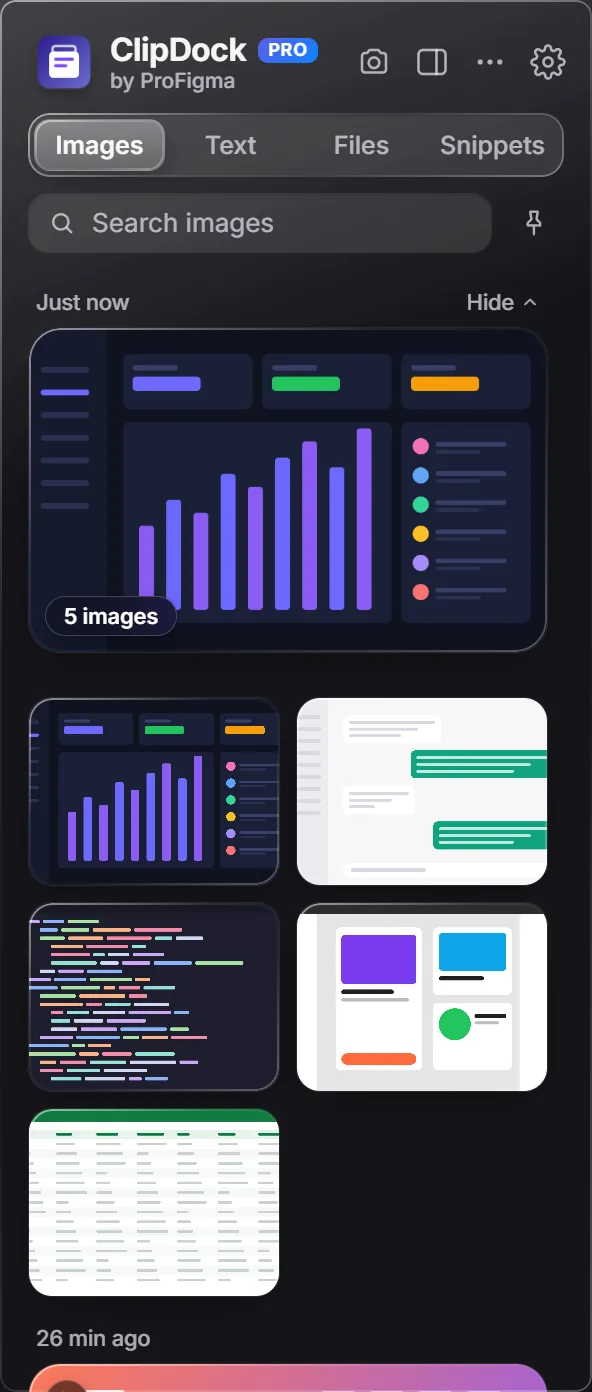
Drop many at once
Screenshots taken in a row group into one stack you drag anywhere.
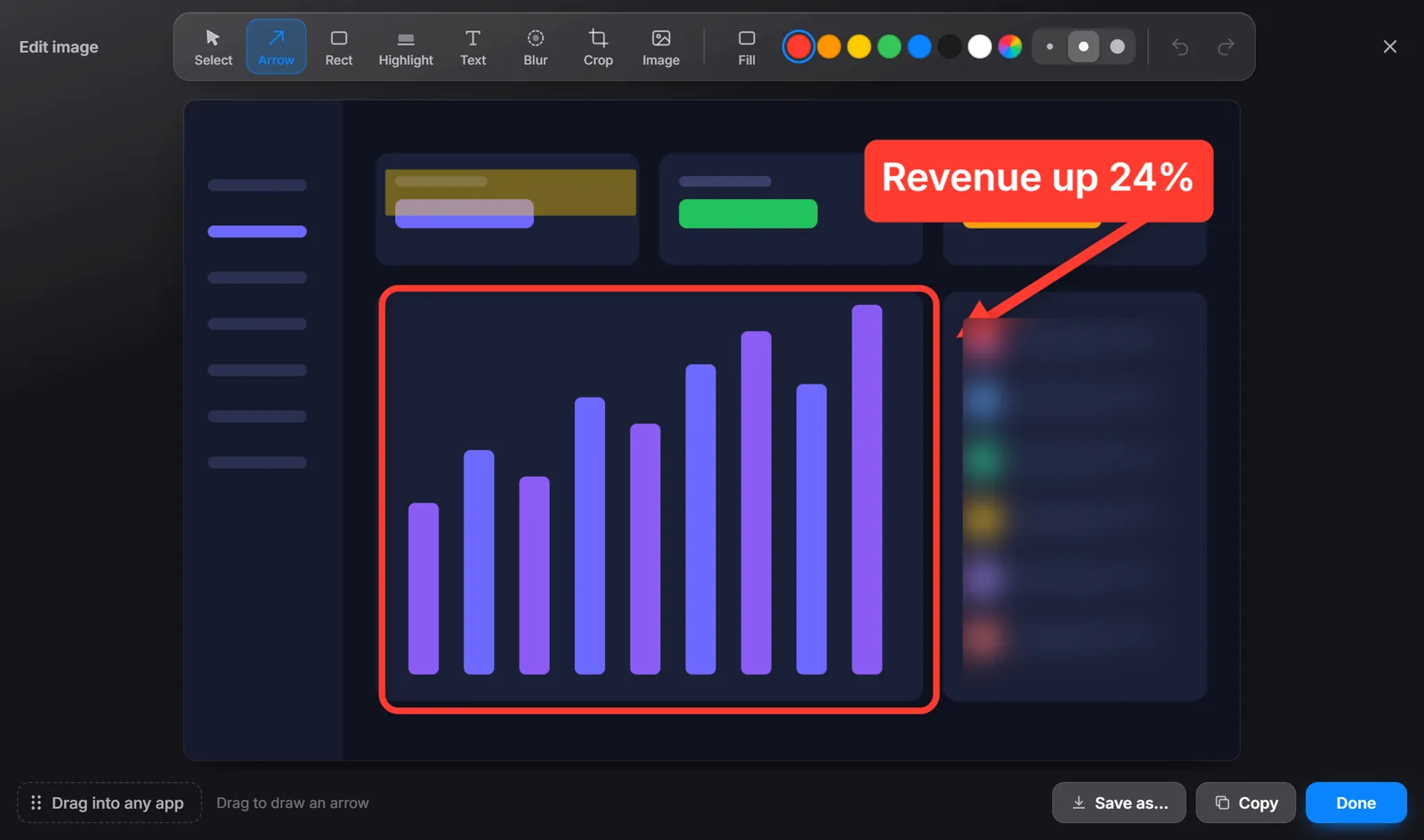
Quick editor
Arrows, boxes, highlights, text, blur, crop and image on top.
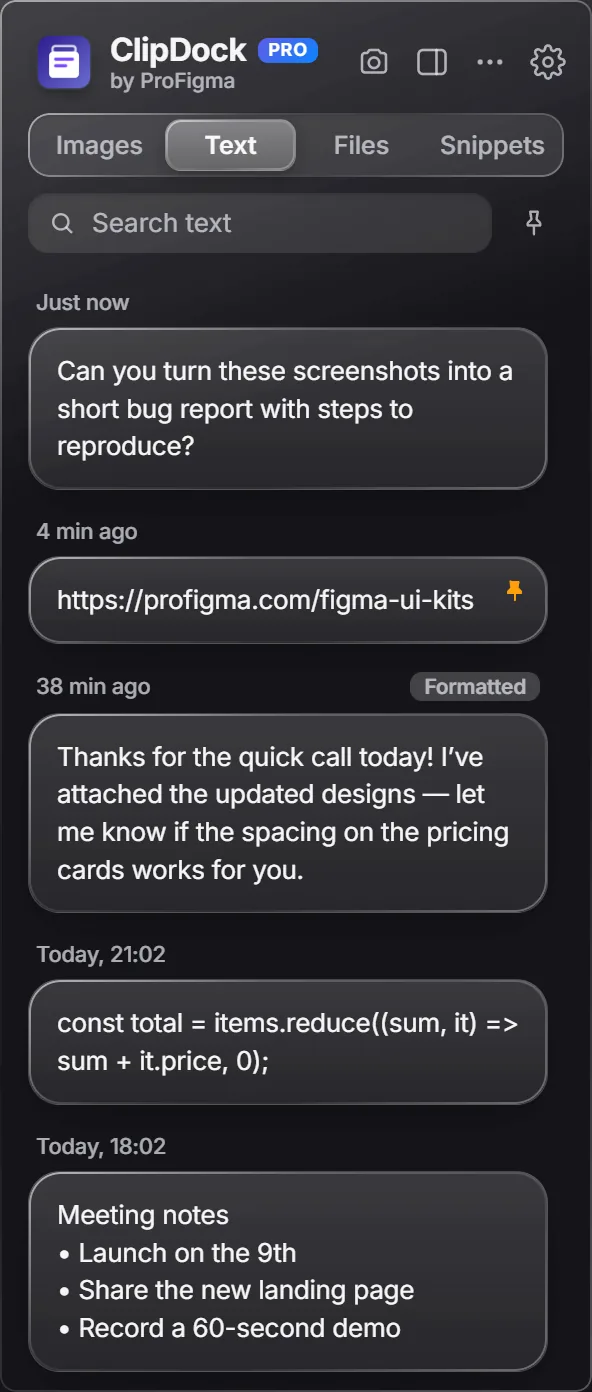
Everything you copy
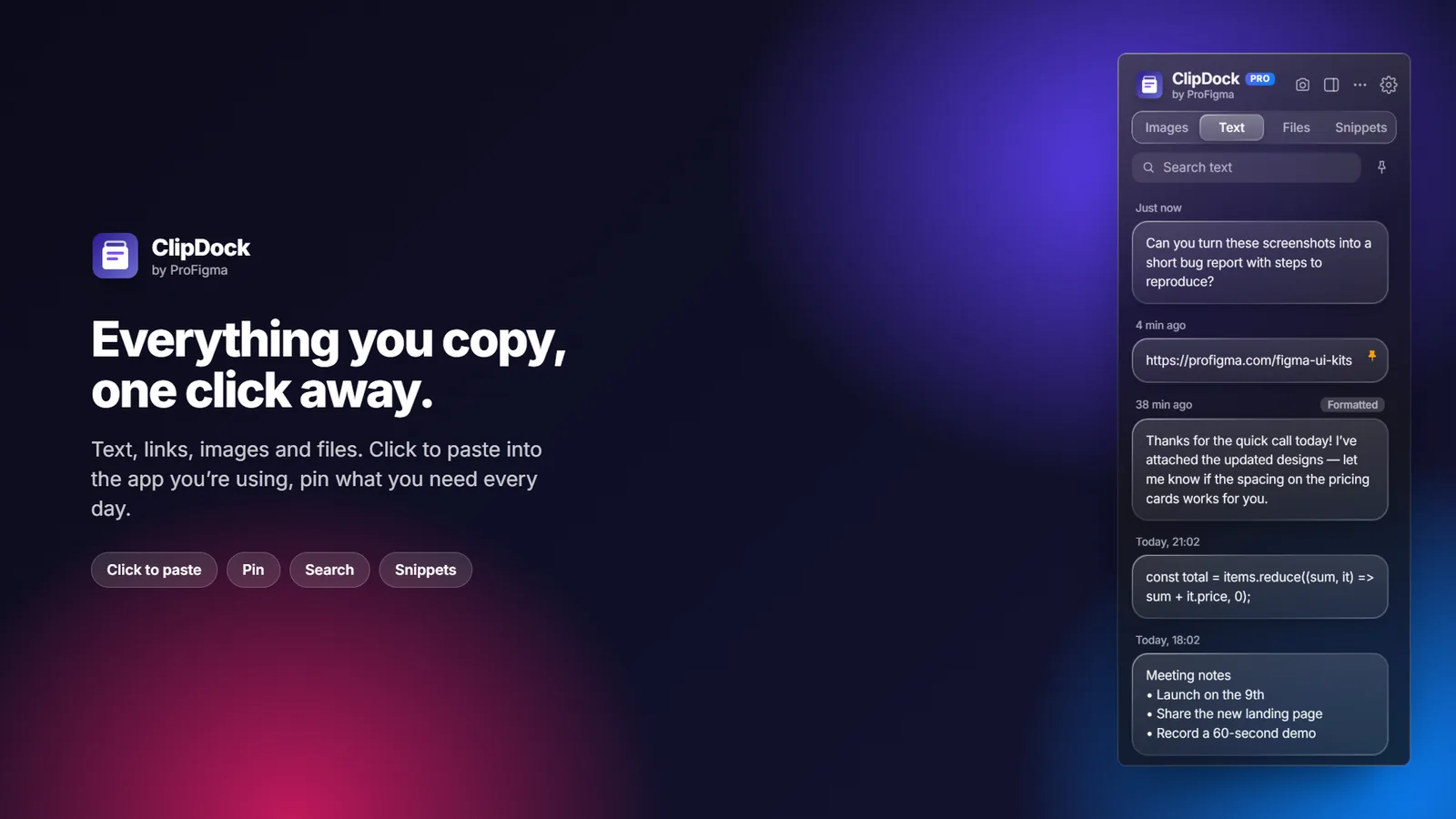
Images, text, links and files, with pins, search and snippets.
One long image
Join several screenshots into a single tall image.
Dock on any edge
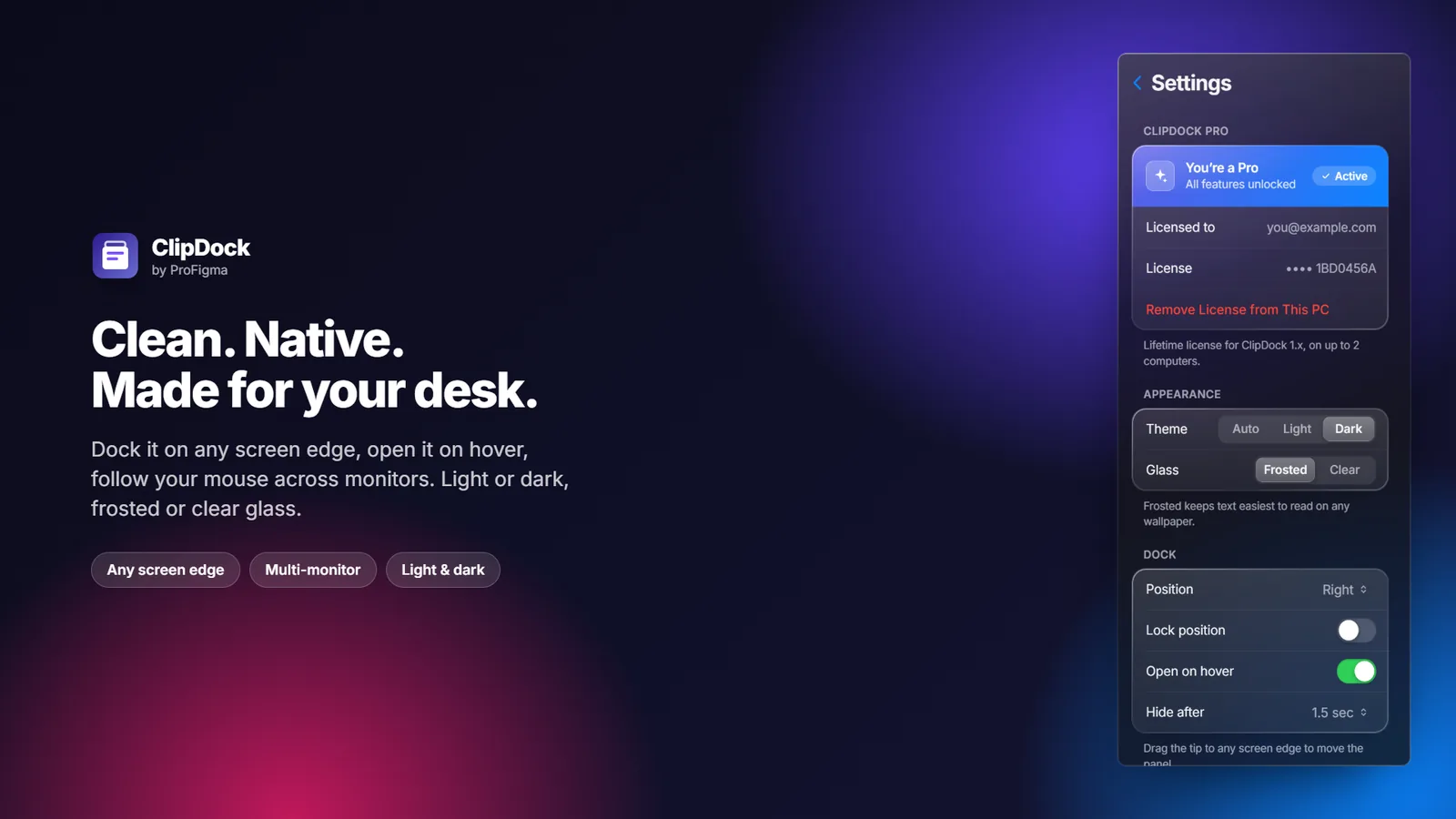
Opens on hover or with Alt+Shift+V and follows your mouse across monitors.
Themes
Light, dark or automatic, with frosted or clear glass.
Stays on your PC
Skips passwords from password managers. Pause any time.
Key decisions
What I chose, why, and what it cost.
Live on the screen edge
The dock hides at the edge and opens on hover or a shortcut, so it's always one move away but never in the way.
CostEdge detection and multiple monitors took a lot of tuning.
Stacks instead of single clips
The whole idea is "capture first, paste later". Grouping screenshots taken in a row lets you drop all of them in one drag.
CostDragging many files into other apps needed native Windows code.
Private by design
History never leaves the computer, and passwords copied from a password manager are skipped.
CostNo cloud sync between computers.
Free plan plus a 7-day Pro trial
Everyone gets every Pro feature for a week, then a useful free plan. Pro is a one-time purchase, not a subscription.
CostLess steady income than a monthly plan.
An editor built in
Most screenshots for AI need one arrow or one blur. Doing it right after capture saves opening another app.
CostAnother full tool to design and test inside a small app.
Screens
The editor, the dock panels and the Microsoft Store images. Click any image to see it full size.
What was messy
It didn't go in a straight line.
Desktop apps have more edges than websites: other apps, other monitors, Windows rules and store packaging all had their own surprises.
- Dragging files from the dock into other apps
- Packaging for the Microsoft Store
- Behaving well across several monitors
- Ship the dock and stacks first, the editor later
- Test on more Windows setups before launch
- Start a Mac version plan earlier
How AI fit in
Decided
- The "capture first" idea and the stack
- Dock layout, tabs and every control
- Free and Pro limits and the price
- Store listing text and images
Built
- The Electron app and dock
- Screenshot capture and editor
- Native drag and drop
- Licences and the trial
- Store packaging
Where it is now
Free on the Microsoft Store, with a one-time Pro licence on Gumroad.
Next: add download numbers here and look at a Mac version.